Tuesday, 19 February 2019

How to Manually Delete WeChat Photos from iPhone 2019


How to Manually Delete WeChat Photos from iPhone

In most cases, pictures form the largest proportion of the space occupied by most social and instant messaging apps. And coupled with privacy risks, a lot of people want to get rid of some pictures if not all.

You can do this manually from within the app. To delete photos in WeChat, launch the application and work on the storage by following the steps below:

Step 1: Launch WeChat.

Step 2: Tap ‘Me’ .

Step 3: Navigate to ‘Settings’.

Step 4: Select ‘General’.

Step 5: Select ‘Manage Storage’.

Step 6: Select ‘View WeChat Storage’.

Step 7: Locate the chat that has the specific picture you want to delete and select the friend.

Step 8: You can choose to delete a specific picture or all pictures present within that chat.


Sponsor ads:

Gihosoft Free iPhone Data Recovery:iphonerecovery.com

Free iPhone Data Recovery Software for Windows/Mac

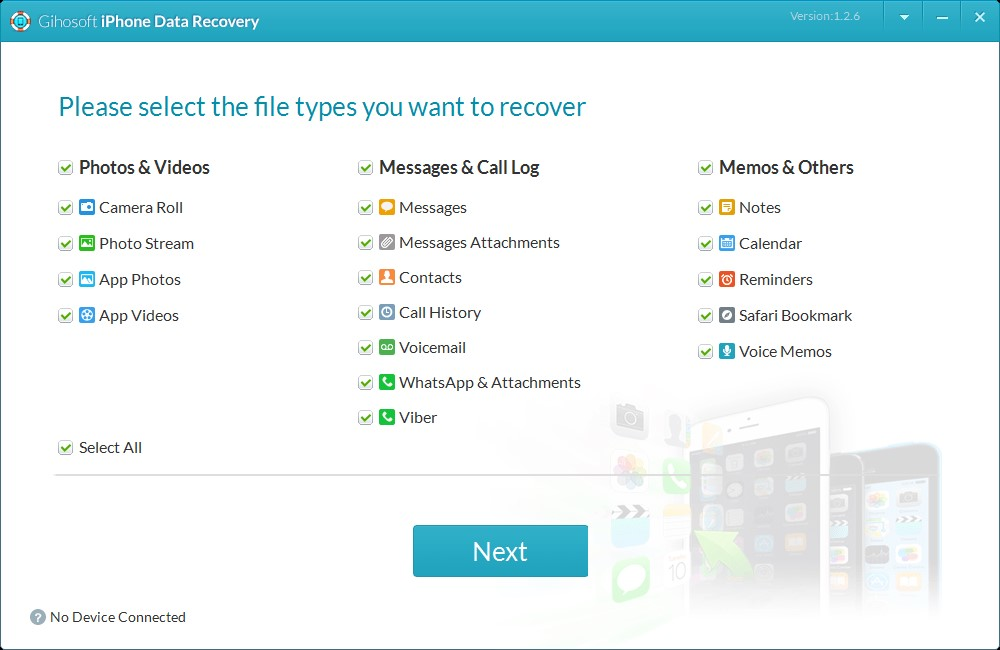
Recover up to 12+ types of files, including contacts, SMS, photos, WhatsApp, Viber, notes, etc.

Restore lost data from iOS devices directly or from iTunes and iCloud backup

Recover iPhone data lost due to iOS upgrade/jailbreak, accidental deletion, device lost or broken

Support all the latest iPhone, iPad and iPod Touch

Both Free and Pro version.

If you lost data after you updated to a new iPhone, you can always use Gihosoft iPhone Data Recovery to get the data back from the old iPhone or backup.

Top 10 Best FRP Bypass Tools to Bypass Google Account on Android Device 2019

Worth reading:download youtube 1080p

If you use android phones, please choose Gihosoft Android Data Recovery


Jihosoft Android Data Recovery: the best Android Data Recovery software for Windows and Mac to recover deleted contacts, messages, photos, videos, WhatsApp and etc from Android

Thursday, 14 February 2019

Common Asked Questions When Photos Disappeared from iPhone


Common Asked Questions When Photos Disappeared from iPhone

Users who have found the photos disapperaed from iPhone may ask a lot of questions. Here we will answer the most commonly asked question below. If you also have interest in this section, keep reading.
Q 1.Why are My Photos Disappearing on iPhone?

There are many reasons may lead to the same result - photos missing from iPhone. Here are some normal ones you may encounter:


update to the latest iOS version


restore a previous but unknown backup


less storage to save photos


turn off Photo Stream in camera roll


someone else delete them without telling you


the photos has been hidden


...
Q 2.Where Has My Photos in Camera Roll Gone from My iPhone?

When you delete a photo, it just changes from "Allocated" to "Unallocated", but leaves the actual data sitting there. Some day, when you create new data, the space for the "Unallocated" entries will be firstly occupied and overwritten with new information. That means before they are overwritten, they do not actually disappear and it is possible to get them back.

As a matter of fact, this article will show you how to get back your photos missing after iOS 12/11.4/11.3 update. Just sit back, relax and get all the answers.Must Read:If you lost data after you updated to a new iPhone, you can always use Gihosoft iPhone Data Recovery to get the data back from the old iPhone or backup.

Gihosoft Free iPhone Data Recovery:iphonerecovery.com

If you use android phones, please choose Gihosoft Android Data Recovery

5 Tips to Optimize iPhone Data Usage 2019


5 Tips to Optimize iPhone Data Usage
1 Turn off Cellular Data Usage

One of the easy ways to save a lot of data usage, is to turn off the data usage that is being used for iCloud. iCloud uses a lot of data if you are transferring files or have the option on to save whatever you do to documents, pictures or videos to get saved on iCloud. This means that everything that you change in terms of files, photos and videos will get updated to iCloud while consuming huge amounts of data.

In order to turn it off, you simply need to go to Settings, then tap iCloud and turn off “Use Cellular Data”.


2 Disable Background App Refresh

Certain apps take up a lot of data as they are constantly getting updated or refreshed in the background. Therefore, it is a good idea to turn it off to save data usage.

You can do this by going to Settings -> General -> Background App Refresh and turn the option off.
3 Stop Streaming Music

Streaming high-quality music certainly uses a lot of cellular data. To optimize iPhone data usage, it is better to download such files. Given that iPhone has a default setting to allow you to stream music whether or not you are online, you will need to change this so as to save data usage.

Again, you need to go to “Settings” and then into “Music”. Once you are in, you switch off the “High Quality on Cellular” option.
4 Turn off Automatic App Downloads

Apps that automatically download certain files usually consume up immense amount of iPhone data.

To turn it off, go to Settings -> App and iTunes Stores and turn off the Use Cellular Data option.
5 Turn off Wi-Fi Assist

Wi-Fi Assist is useful as it compensates for the slow Wi-Fi speed that you get from you normal Wi-Fi network. It does so by using the cellular data.

You can turn it off by going to Settings -> Cellular and turn off “Wi-Fi Assist.


Although the above mentioned techniques can help you save iPhone storage, it is still confusing and not to mention quite ineffective. Turning off certain options as mentioned above will surely restrict your iPhone’s performance. Also, you may not be able to use the apps to their full potential.
Tips:
Restoring Lost Photos and Videos from iPhone

If you have deleted some of your pictures or videos from your gallery, then there is a straightforward way to Recover Deleted Files iPhone back.

After you delete the media files from your gallery, be it photos or videos, then you must know that iOS has a feature that the deleted media files doesn’t get deleted immediately, but it gets compiled to a temporary folder from where it gets deleted after 30 days. If you lost data after you updated to a new iPhone, you can always use Gihosoft iPhone Data Recovery to get the data back from the old iPhone or backup. Should you wish to recover these files, you must go to that “recently deleted” folder and retrieve these files before 30 days.

If you use android phones, please choose Gihosoft Android Data Recovery.


Worth reading:Best youtube downloader online download youtube 1080p

Wednesday, 12 December 2018

How to Reset iPhone With iTunes and Without iTunes


Part 1: If You Have Synced iPhone With iTunes Before, Reset Directly

You can factory reset iPhone with iTunes if you have synced your iPhone with iTunes before. If it is not synced in the first place, iTunes won’t recognize your device. To know how to reset iPhone using iTunes, follow the steps below.

Step 1: Open iTunes on your PC/Mac and connect your iPhone to it with the help of a USB cable.

Step 2: From the options on the left side, click on “Summary”.

Step 3: On the right side of the screen you will an option “Restore iPhone”, click on that.

Step 4: Click on “Restore” again to confirm the reset process.


By following the above steps you will know how to restore iPhone using iTunes.
Part 2: If iTunes Doesn’t Recognize Your iPhone, Reset in Recovery Mode

If in case your device is not detected by iTunes, then you can reset your iPhone by putting it into Recovery Mode. You can do this by following the steps below.

Step 1: Launch iTunes on your PC/Mac and connect your iPhone to it with the help of a USB cable.

Step 2: Now force restart your iPhone and note that the force restart method will vary from one iPhone model to another.


Force restart iPhone 8 and latest models by, quickly pressing and releasing Volume Up button and the Volume Down button and then hold the Power button till “Connect to iTunes” appears on the screen.


Force restart iPhone 7 and 7 Plus by, Pressing and holding the Power button and Volume Down button till “Connect to iTunes” appears on the screen.


Force restart iPhone 6 and older models by, pressing and holding the Power button and the Home button till “Connect to iTunes” appears on the screen.

Sponsor ads:

Gihosoft Free iPhone Data Recovery:https://www.gihosoft.com/iphone-data-recovery-free.html

Gihosoft iPhone Data Recovery Free

Free iPhone Data Recovery Software for Windows/Mac

Recover up to 12+ types of files, including contacts, SMS, photos, WhatsApp, Viber, notes, etc.

Restore lost data from iOS devices directly or from iTunes and iCloud backup

Recover iPhone data lost due to iOS upgrade/jailbreak, accidental deletion, device lost or broken

Support all the latest iPhone, iPad and iPod Touch

Both Free and Pro version.

If you lost data after you updated to a new iPhone, you can always use Gihosoft iPhone Data Recovery to get the data back from the old iPhone or backup.You may also like: iphonerecovery.com

If you use android phones, please choose Gihosoft Android Data Recovery.

With Gihosoft Android Data Recovery, no longer afraid of data loss!

Gihosoft RePicvid Free Photo Recovery Software provides a free photo recovery software for windows to help users recover the deleted or lost photo for free.

Jihosoft Android Data Recovery: the best Android Data Recovery software for Windows and Mac to recover deleted contacts, messages, photos, videos, WhatsApp and etc from Android devices.
jihosoft Free iPhone Data Recovery


Worth reading:Best youtube downloader online download youtube 1080p


Thursday, 30 August 2018

The best way to Connect to iTunes When iPhone 6 Is Disabled


How to Connect to iTunes When iPhone 6 Is Disabled

If someone attempts to unlock your iPhone 6, 7, 8 or X and ends up putting the wrong passcode for too many times, your iPhone will be disabled and a notification that “iPhone is disabled, connect to iTunes” will be shown on your lock screen.

When you see such notification, you mind maybe that once you connect to iTunes, the lock screen will be automatically removed; that’s not true! The truth is that you’ll go through many steps and navigate through multiple iTunes windows before you can fix your disabled iPhone.

Here are the steps to connect to iTunes when iPhone is disabled:


If you’ve synced your iPhone 6 with iTunes in time past, then connect your iPhone to the computer you synced with. If you haven’t synced your device on iTunes before, try the way in the next part.


Launch iTunes on your PC while connecting your iPhone.


iTunes will make a backup of your iPhone, wait for it to finish. After the sync, click “Restore iPhone”.


From the Set-Up page, click “Restore from iTunes backup” to lift a backup from your library.


Select your iPhone in iTunes, and choose a relevant backup to restore your iPhone with. Consider backup date and size when choosing.


If iTunes says your iPhone is locked, this way to connect to iTunes is ineffective for you. You should try the next solution.

Jihosoft Android Data Recovery: the best Android Data Recovery software for Windows and Mac to recover deleted contacts, messages, photos, videos, WhatsApp and etc from Android devices.

Gihosoft Android data recovery Free is a super awesome software specialized in Android file recovery. With this program, you are able to recover deleted photos, music, videos, messages, contacts, call logs, WhatsApp messages, Viber chat history and more from Samsung, Huawei, LG, HTC, Motorola, Google, Oneplus, Sony, Lenovo, ZTE and other Android devices directly. Meanwhile, this Android data recovery software is available for both Windows and Mac platforms.For now, check:Free iTunes/iPhone Backup Extractor for iPhone, iPad

Jihosoft iTunes Backup Extractor free is a powerful tool to recover and extract important data from iPhone, iPad & iPod touch backup on Windows or Mac.

You may also like:Gihosoft Mobile Transfer: 1 Click Data Transfer from Phone to Phone

If you can’t sync with iTunes and want to rescue data from a disable iPhone, you could try Gihosoft iPhone Data Recovery. Also feel free to ask questions on the iDevice is disabled error in the comments section below.

Saturday, 21 July 2018

How to Cancel Your Spotify Premium Membership

How to Cancel Your Spotify Premium Membership

Step # 1. Open any web browser on your device and go to the Spotify website. Then log in to your account.

Step # 2. Now click on your username and select account from the drop down menu.

Step # 3. Then you have to click on the subscription in the menu and select "Edit or Cancel."

Step # 4. Then click on "Cancel Premium".

Step # 5. Finally, confirm by clicking Yes, Cancel

That's about it!

Conclusion

You have successfully stopped the subscription. However, you can continue to listen to a service based on ads without music. To make sure the plan has stopped successfully, check the subscription history.Jihosoft iPhone Backup Extractor Extract and recover all types of data from iPhone backup files, such as camera roll photos, videos, SMS, contacts, reminders, WhatsApp, and etc.

Gihosoft Free iPhone Data Recovery is a professional iPhone Data Recovery software to get back all your lost text message, photo, video, call history, note, contact and more from iPhone/iPad/iPod Touch.


Sunday, 10 June 2018

When Apple Music Deleted My Music from iPhone!

Apple Music Deleted My Music from iPhone, Re-download Music on iPhone


In the past, when you lose or delete your music by mistake on your iPhone you’d be in serious trouble. Fortunately, Apple now has a feature that allows you re-download all missing or lost music purchased from iTunes for free. This is a free service but it’s only applicable to music purchased from the iTunes store. This feature lets you re-download songs, album covers, albums, etc. directly to your iPhone at zero cost. Follow the steps below to re-download missing music for free:


Step 1. Login with the Apple ID you used for the music purchase on your iPhone. Navigate to "Settings > iTunes & App Store> Apple ID".


Step 2. Click on the iTunes Store app to open it.


Step 3. At the bottom right of the screen, hit the "More" button.


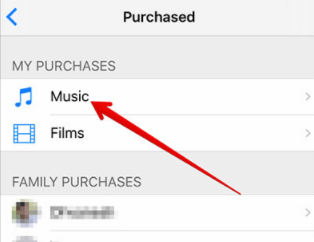
Step 4. Click on "Purchased".


Step 5. Click on "Music".


Step 6. Hit the "Not on This iPhone" toggle.


Step 7. A list of purchases will be displayed. Look for the ones you want to re-download from the list.


Step 8. Click on the download icon (the cloud that has an arrow pointing down) to initiate the download process


Do you like this story?


Sponsor Ads:


Gihosoft iPhone Data Recovery is a professional iPhone Data Recovery software to get back all your lost text message, photo, video, call history, note, contact and more from iPhone/iPad/iPod Touch. It offers a full solution to recover your lost data in different tough situations. Besides recovering data directly from iPhone, iPad and iPod touch, it also allows you to recover data from iCloud and iTunes backup files.


Step 9. Once that is done you’ll have your song re-downloaded to your iPhone

Restore iPhone to Factory Settings from Computer 2019

Restore iPhone to Factory Settings from Computer Here is how you can use your iTunes on your computer to restore your iPhone to factory sett...